In-store & hospitality
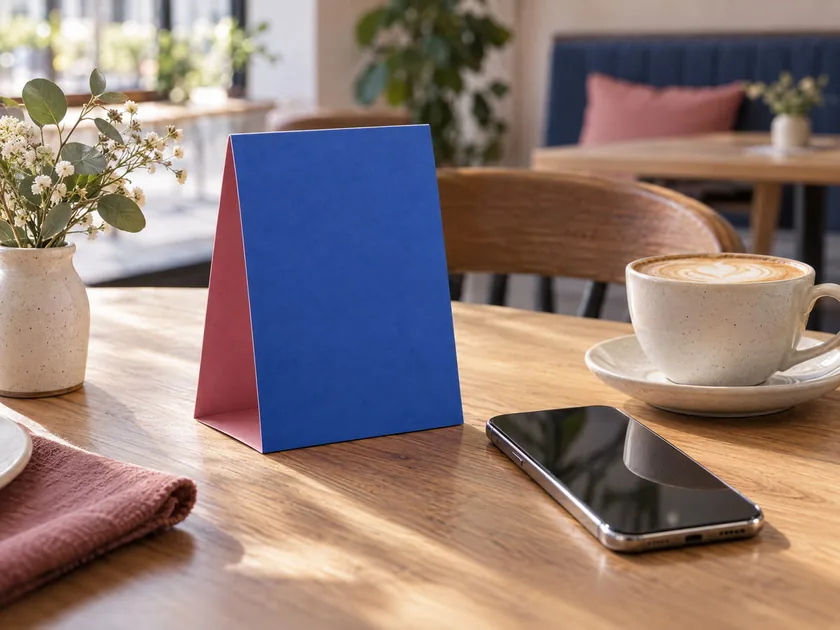
Menus, tables and event signs
Help guests reach a menu, booking page or event details from a printed sign or table card.
A CLEAR FIRST STEP FOR YOUR BRAND
Create a scannable QR code for a link, contact detail or message. Add your brand colours and optional logo, then test and download your design.
Your design will appear here.
Choose a content type, add your details and generate a QR code to preview the design.
Always test the final download before printing.Scan-test on more than one phone before use.
Error correction is set automatically.
Made for real-world moments
Place your QR code where it can make a useful action easier, from browsing a menu to finding product details.
Help guests reach a menu, booking page or event details from a printed sign or table card.
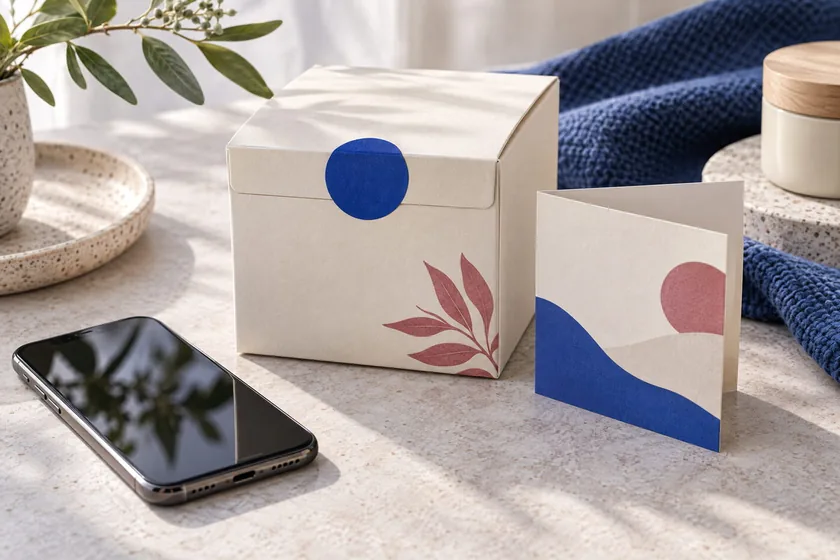
Give customers a simple route to care instructions, product stories, support or a campaign page.
More free tools
Explore more practical resources from Primelane for planning, promotion and brand building.
Frequently asked questions
Learn how to make, customise and use your QR code with confidence.
Yes. You can create and download a branded QR code in PNG or SVG format without signing up. The QR code is generated in your browser, with no QR-generation API account required.
Choose a website address, phone number, email address, WhatsApp contact or plain text. The tool formats each choice into the corresponding scan action where appropriate.
Yes. Upload a PNG, JPEG or WebP image up to 1 MB. The logo is processed locally in your browser and placed on a light centre plate. A logo uses stronger QR error correction, but you should still scan-test the result before publishing.
It can if the logo is too large, the code has weak contrast or too many modules are covered. This generator keeps the logo modest and uses high error correction when a logo is added. Test the downloaded file on several phones and at the size you plan to print.
This tool creates a static QR code: its encoded content is fixed when generated. To change the destination later, you would need to create and distribute a new QR code. Dynamic QR codes generally require a redirect service and may involve separate terms or fees.
No. Generation and logo compositing happen in the current browser tab. This standalone tool does not send the QR content or selected logo to an external QR API.
The quiet zone is the plain border around the code. It separates the QR pattern from nearby graphics or text so a scanner can locate its edge. This tool keeps at least four modules of clear space and lets you increase it.
PNG is convenient for websites, presentations and many everyday uses. SVG is a vector format that can be enlarged for print without becoming pixelated. Confirm that the software or print provider you use accepts SVG.
Testing helps catch an incorrect destination, weak colour contrast, a logo that covers too much of the pattern or a printed code that is too small. Scan the final downloaded artwork on more than one device under realistic lighting.
Yes. Use the colour controls to match your brand, but keep the QR modules much darker than a plain background. Very light, similar or transparent colours can make codes difficult to scan. The page warns when the selected contrast is low.
A practical QR guide
Use a clear destination, customise carefully and test the final code before sharing it.
A QR code connects a printed or displayed surface to digital content. Someone can scan it with a compatible phone camera to open a website, start a call or email, reach a WhatsApp conversation or read a short text. A branded QR code adds visual cues such as your logo or brand colours while keeping the code's purpose clear. It can make packaging, menus, posters, event material and business cards feel more consistent with the rest of your identity.
Use the free branded QR code generator above to enter the destination or message first. Select the content type that matches what you want a visitor to do. For a website, use the final public URL rather than a temporary preview address. For phone and WhatsApp details, include the correct country code where needed. For an email QR code, consider whether opening a new email with the address filled in will be useful to the person scanning.
Branding should support scanning, not compete with it. Choose a dark QR foreground and a much lighter, solid background. Maintain the clear quiet zone around every side of the code. Avoid gradients, busy patterns, transparent backgrounds and decorative effects that make the modules hard to distinguish. This page lets you adjust foreground and background colours, increase the quiet zone and add an optional logo or brand caption.
A logo can help people recognise who created the code, but a large centre image can hide too much encoded information. The generator uses stronger error correction when you add a logo and places it on a contrasting plate. Keep the artwork modest, make sure important QR modules remain visible and scan-test the exported file. If a logo version is unreliable, remove it or use the plain code instead.
This tool creates static QR codes. The data is encoded directly in the pattern, so a website link or message cannot be changed after you have printed or distributed the code. Check the destination carefully before download. If your campaign needs editable destinations or scan analytics, that usually requires a separate dynamic QR or redirect service. Review its hosting, privacy, retention and pricing terms before relying on it; this page does not create or manage redirects.
Do not rely only on the preview. Download the PNG or SVG you intend to publish and test that exact file on more than one phone. Check it at the expected print size, screen size and viewing distance. Confirm that the destination is correct and that the code works under normal indoor lighting. On printed material, leave enough surrounding space and avoid placing the code across a fold, curve or glossy reflection.
Thoughtful QR design is a balance between identity and function. Start with a clear purpose, customise only the elements that preserve contrast and quiet space, and verify the actual file in its real context. Those checks help make a branded code feel professional while keeping the next step simple for the person who scans it.
Free resources & brand support
A useful QR code is just one part of a consistent customer experience. Explore Primelane’s free resources or talk with the team about a website, brand or SEO project.